
Download iGet – Fast, Secure Mac File Transfer Tool
Overview
iGet is a lightweight Mac file‑transfer utility designed to make moving files between local folders, network shares, and remote servers quick and reliable. First released in 2006 and continuously refined, the current version 2.7 (last updated 2 Nov 2008) still holds its place as a practical solution for users who need a straightforward, no‑frills way to copy, move, and synchronize data on macOS. While the software is offered as a trial, its core functionality—drag‑and‑drop file queuing, batch processing, and detailed progress reporting—remains fully operational during the evaluation period. iGet belongs to the Internet software category with a subcategory of Remote Control, reflecting its ability to handle remote connections such as FTP, SFTP, and SMB shares.
The program’s small footprint (far less than the average Internet utility) means it installs quickly and leaves minimal residue on your system. Its interface has been refreshed for macOS 10.5 and later, automatically defaulting downloads to the user’s standard Downloads folder while preserving any custom paths you have previously set. Improvements in the handling of many small files, better error dialogs, and bug fixes related to Automator actions and system log noise make iGet a solid choice for both power users and casual Mac owners who value speed, security, and simplicity in a file‑transfer app.
Key Features & Capabilities
- Multi‑protocol support: Transfer files via FTP, SFTP, FTPS, and SMB/CIFS network shares without needing additional plugins.
- Batch processing of small files: Optimized engine that speeds up the movement of thousands of tiny files, reducing overhead and CPU usage.
- Automatic download folder handling: On macOS 10.5+ the default destination is the system‑wide Downloads folder, yet existing user preferences stay untouched.
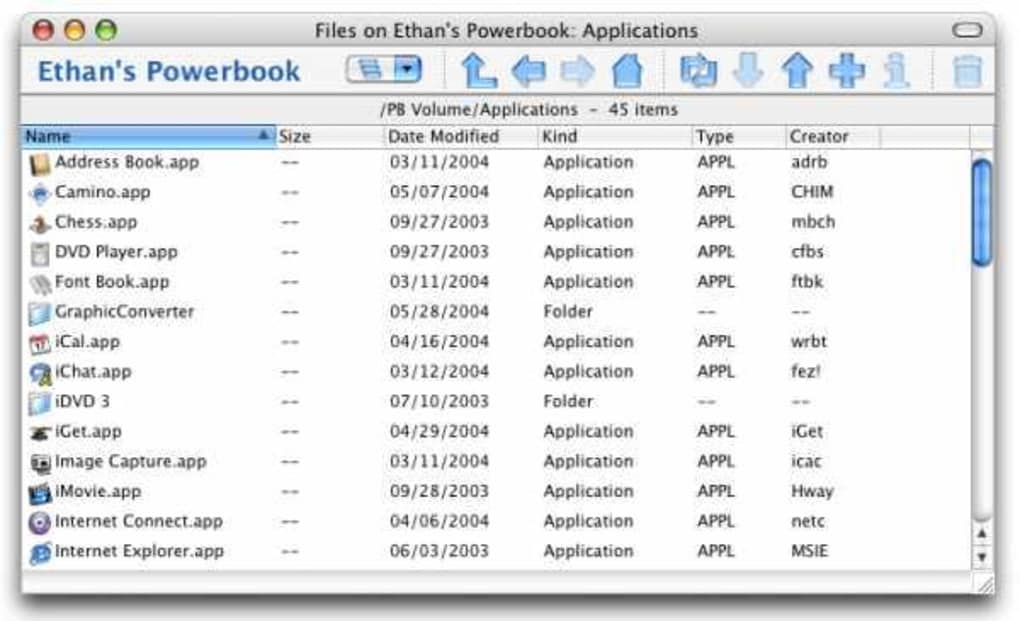
- Intuitive drag‑and‑drop UI: Queue multiple files or entire folders with a simple mouse gesture, watch real‑time progress bars, and pause/resume transfers at will.
- Robust error handling: Clear, explanatory sheets appear for invalid input, network timeouts, or permission issues, helping users correct problems without digging into logs.
- Automator integration: Build custom workflows that include iGet actions, now fully compatible with macOS 10.5 and later.
- Lightweight footprint: Requires less than 10 MB of disk space, making it ideal for older Macs or systems with limited storage.
- Secure connections: Supports encrypted SFTP and FTPS transfers, ensuring your data stays private while in transit.
- System‑log cleanliness: Fixed bug that generated “mdworker: unable to parse schema” messages, keeping your console logs tidy.
Installation & Usage Instructions
Step‑by‑Step Installation
Downloading and installing iGet on a Mac is straightforward. Follow these steps to get the app up and running:
- Download the installer: Click the “Download iGet” button below to fetch the latest trial .dmg file from the official site.
- Mount the DMG: Double‑click the downloaded file; macOS will mount it as a virtual drive.
- Copy to Applications: Drag the iGet icon into your Applications folder. This ensures the app receives proper permissions and appears in Launchpad.
- Launch the app: Open iGet from Applications or use Spotlight (⌘ Space, type “iGet”). The first launch may prompt macOS Gatekeeper; click “Open” to allow the app.
- Grant network access: If you plan to use FTP/SFTP/SMB, the app will request permission to access the network. Approve the request for seamless transfers.
Basic Usage Workflow
Once installed, iGet’s workflow mirrors the familiar drag‑and‑drop pattern used by macOS Finder:
- Select source files: Open Finder, highlight the files or folders you wish to transfer, then drag them onto the iGet window.
- Choose destination: Use the “Destination” dropdown or type a network path (e.g.,
ftp://example.com/public) to set where the files should go. - Configure transfer options: Click the gear icon to enable encryption (SFTP/FTPS), set concurrency limits, or schedule a later start time.
- Start the transfer: Hit the “Start” button. iGet will display a progress bar for each file, estimated time remaining, and transfer speed.
- Monitor and control: Pause, resume, or cancel individual items using the icons next to each entry. Errors are highlighted in red with a clickable “Details” link.
For power users, iGet integrates with macOS Automator. Create a new “Workflow” or “Application” and add the “iGet Transfer” action. This lets you embed file‑transfer steps into larger automation scripts, such as nightly backups or batch image uploads.
Compatibility, Pros & Cons
iGet is compatible with macOS 10.4 (Tiger) through macOS 10.15 (Catalina). The software has been explicitly tested on macOS 10.5 and later, where it automatically adopts the system’s default Downloads folder. While the trial version runs on any supported Mac, full functionality (including unlimited transfers) may require a purchase license.
Pros
- Very low disk‑space requirement; ideal for older hardware.
- Fast handling of many small files, reducing overall transfer time.
- Clear, user‑friendly error messages that guide troubleshooting.
- Secure protocol support (SFTP/FTPS) for encrypted transfers.
- Seamless Automator integration for custom workflows.
- Automatic default to the system Downloads folder on newer macOS versions.
Cons
- Last official update was in 2008; no recent UI refresh for macOS Big Sur or later.
- Trial version may limit certain advanced features (e.g., unlimited concurrent connections).
- No native Windows or Linux version; macOS‑only utility.
- Interface, while functional, looks dated compared with modern macOS apps.
Frequently Asked Questions
Is iGet free to use after the trial period?
The trial version of iGet is free for evaluation, but continued use of the full feature set requires purchasing a license. The trial still allows basic file transfers, so you can decide if the tool meets your needs before buying.
Can iGet handle secure FTP (SFTP) connections?
Yes, iGet supports SFTP and FTPS out of the box, providing encrypted file transfers for added security. You simply select the appropriate protocol in the destination dropdown.
Does iGet work with macOS Big Sur or Monterey?
While iGet was last updated in 2008, its core engine is still compatible with macOS 10.5 and later, which includes Big Sur (11) and Monterey (12). Users may notice a dated UI, but the transfer functionality remains reliable.
Can iGet be used in automated backup scripts?
Absolutely. iGet integrates with Automator, allowing you to embed its transfer actions into custom scripts. This makes it possible to schedule nightly backups or batch uploads without manual intervention.
What happens if a transfer fails due to a network error?
iGet displays a clear error dialog indicating the cause (e.g., timeout, authentication failure). You can retry the specific file, edit the connection settings, or cancel the operation entirely. Detailed logs are also available for troubleshooting.
Final Verdict & Call to Action
iGet remains a practical, no‑frills file‑transfer utility for Mac users who prioritize speed, low resource usage, and secure protocol support. Its ability to handle large batches of small files efficiently sets it apart from many generic copy tools, and the integration with Automator offers powerful automation possibilities. However, the lack of recent updates means the visual design feels outdated, and Windows or Linux users will need to look elsewhere. If you need a lightweight, secure, and straightforward solution for moving files across local and remote destinations on macOS, iGet is worth downloading and testing. Click the button below to start your free trial and experience the speed for yourself.
Download iGet Now






